Day4 #90daysofDevopschallenge
#Trainwith
Day 4 Task: Basic Linux Shell Scripting for DevOps Engineers.
What is Kernel
The kernel is a computer program that is the core of a computer's operating system, with complete control over everything in the system.
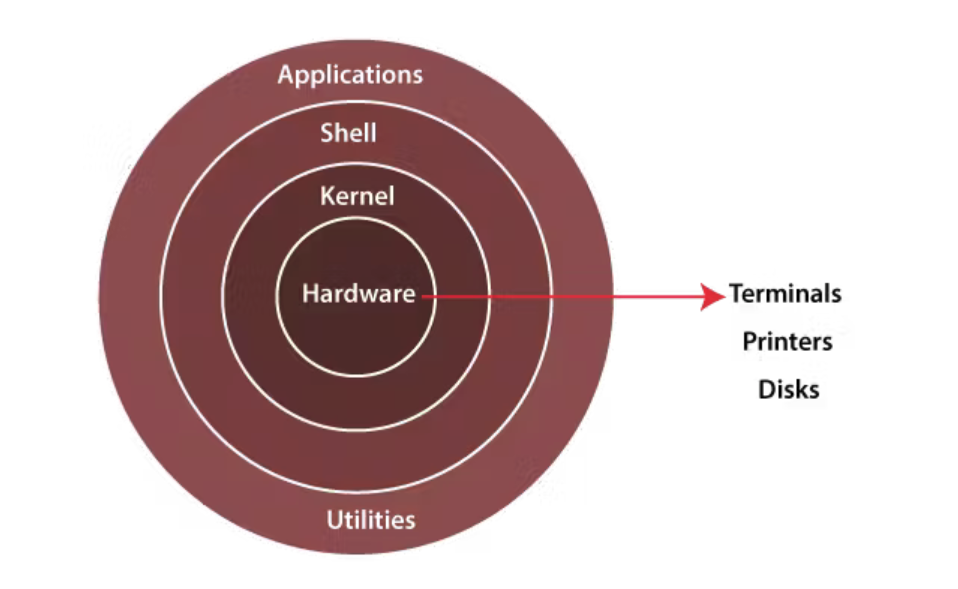
What is Shell
A shell is a special user program that provides an interface for the user to use operating system devices. Shell accepts human-readable commands from a user and converts them into something that the kernel can understand. It is a command language interpreter that executes commands read from the input devices such as keyboards or from files. The shell gets started when the user logs in or starts the terminal.
What is Linux Shell Scripting?
A shell script is a computer program designed to be run by a Linux shell, a command-line interpreter. The various dialects of shell scripts are considered to be scripting languages. Typical operations performed by shell scripts include file manipulation, program execution, and printing text.
Explain in your own words and examples, what is shell scripting for DevOps.
Shell scripting in the context of DevOps refers to the practice of using shell (command-line) scripts to automate and streamline various tasks and processes in the software development and operations lifecycle. It's a crucial skill for DevOps professionals as it helps in managing and orchestrating the deployment, configuration, and maintenance of software systems. Shell scripting provides a way to codify and automate routine, repetitive tasks, making them more efficient and less error-prone.
Here are some key aspects of shell scripting for DevOps, explained with examples:
- Automation: Shell scripts allow you to automate repetitive tasks, such as server provisioning, software deployment, and configuration management. For instance, you can write a script to automatically install and configure web servers like Apache or Nginx on multiple servers.
            # Example: A basic shell script to install and start the Apache web server on a Linux system.
            #!/bin/bash
            sudo apt-get update
            sudo apt-get install apache2 -y
            sudo systemctl start apache2
Configuration Management: Shell scripts can be used to set up and manage system configurations, ensuring consistency across multiple environments. Tools like Ansible and Puppet leverage shell scripts to perform configuration management tasks.
            # Example: An Ansible playbook that ensures NTP (Network Time Protocol) is properly configured on servers.
            ---
            - hosts: web-servers
              tasks:
                - name: Ensure NTP is installed and running
                  apt:
                    name: ntp
                    state: present
                - name: Restart NTP service
                  service:
                    name: ntp
                    state: restarted
Continuous Integration/Continuous Deployment (CI/CD): DevOps practitioners use shell scripts to automate CI/CD pipelines. These scripts can build, test, and deploy applications automatically, ensuring faster and more consistent software delivery.
            # Example: A Jenkins pipeline script to build and deploy a web application.
            pipeline {
                agent any
                stages {
                    stage('Build') {
                        steps {
                            sh 'npm install'
                        }
                    }
                    stage('Test') {
                        steps {
                            sh 'npm test'
                        }
                    }
                    stage('Deploy') {
                        steps {
                            sh 'rsync -r ./dist/ user@production-server:/var/www/app'
                        }
                    }
                }
            }
Monitoring and Alerts: Shell scripts can be used to monitor system health and generate alerts based on predefined conditions. For example, a script can periodically check server resource utilization and send an alert if CPU or memory usage exceeds a threshold.
            # Example: A simple shell script to monitor server resource usage and send an alert.
            #!/bin/bash
            cpu_usage=$(top -n 1 | awk '/^%Cpu/{print $2}')
            if (( $(echo "$cpu_usage > 90" | bc -l) )); then
                echo "High CPU usage detected: $cpu_usage%"
                # Send alert (e.g., email or Slack message)
            fi
Log Analysis: Shell scripts can be used to process and analyze log files for troubleshooting and performance optimization. For instance, a script can extract error patterns from log files and generate a summary report.
      # Example: A script to extract and count error messages from a web server log.
      grep 'ERROR' /var/log/nginx/access.log | sort | uniq -c
In summary, shell scripting is a powerful tool in the DevOps toolbox, allowing professionals to automate tasks, maintain consistency, and manage infrastructure and applications efficiently. It plays a vital role in achieving the principles of DevOps, such as automation, continuous delivery, and collaboration between development and operations teams, ultimately leading to more reliable and scalable software systems.
What is #!/bin/bash? can we write #!/bin/sh as well?
The #!/bin/bash (or shebang) at the beginning of a script is called an interpreter directive. It specifies the interpreter that should be used to execute the script. In this case, #!/bin/bash indicates that the script should be interpreted and executed by the Bash shell.
Bash is a widely used shell in Unix-like operating systems and is known for its extensive features and capabilities. When you specify #!/bin/bash, you're explicitly telling the system to use the Bash shell to run your script. This is common in many Unix and Linux systems.
However, you can also use #!/bin/sh, which specifies that the system should use the default system shell to execute the script. On many Unix-like systems, /bin/sh is often a symbolic link or a lightweight shell that is compatible with the POSIX shell standard. It may or may not be the same as Bash, depending on the system.
Using #!/bin/sh is more portable because it relies on the system's default shell, which may vary from one Unix-like system to another. If you want your script to work on a wide range of Unix-like systems and you're not using any Bash-specific features, using #!/bin/sh is a good choice.
In summary, both #!/bin/bash and #!/bin/sh is a valid shebang line, but the choice between them depends on your specific requirements and the compatibility you want to achieve with different Unix-like systems. If you're using Bash-specific features, it's best to specify #!/bin/bash. If you want greater portability, you can use #!/bin/sh.
Write a Shell script that prints I will complete the #90DaysOofDevOps challenge.
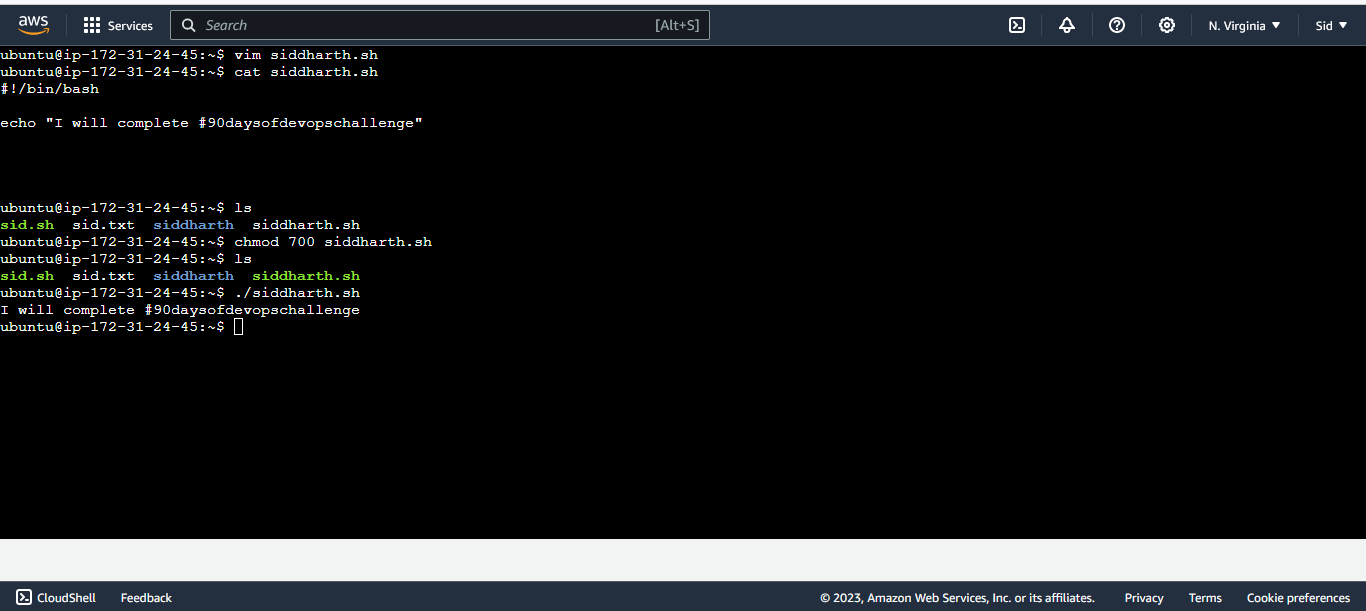
Write a shell script to take user input, input from arguments and print the values.
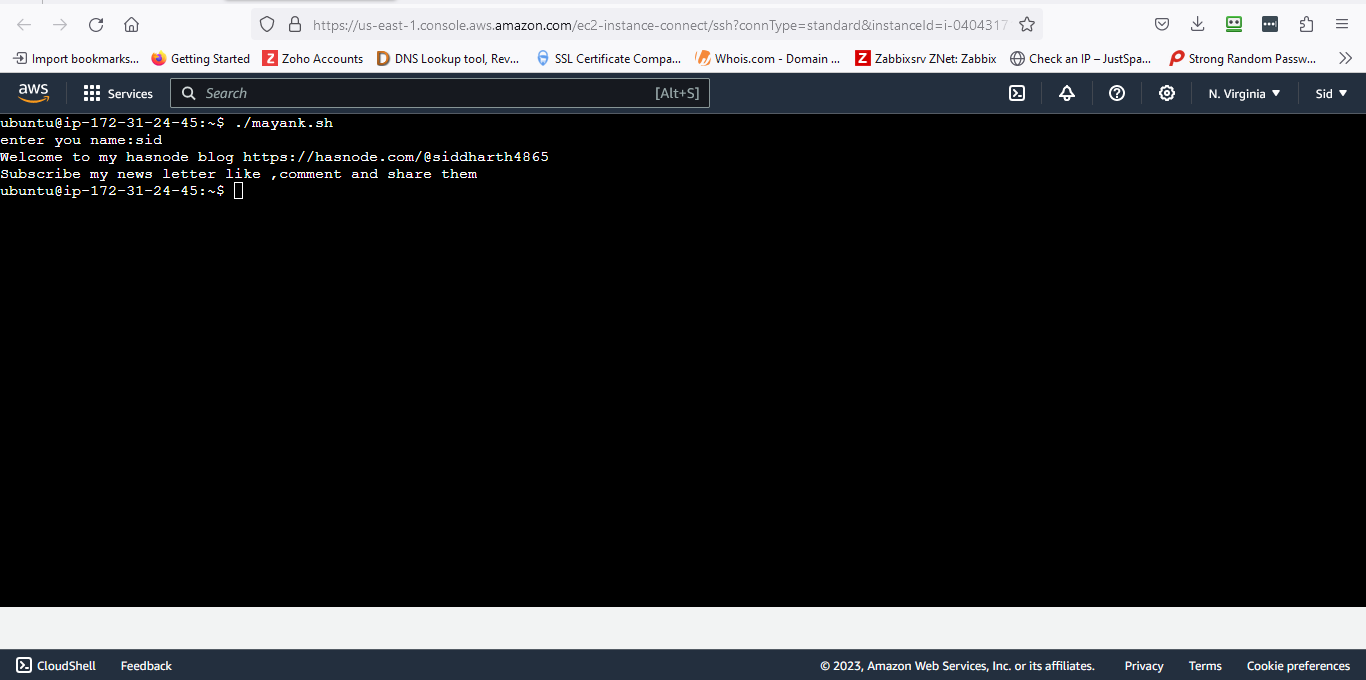
First, create a file vim mayank.sh
#!/bin/bash
read -p "enter your name:" name
echo "welcome to my hashnode blog Siddharth $1"
echo "Please subscribe to my newsletter and share them $2"
Save the file-:wq!
cat mayank.sh
- Then give the permission to file.
chmod 700 mayank.sh
excecute the command.
./mayank.sh
Output-
Write an Example of If else in Shell Scripting by comparing 2 numbers.
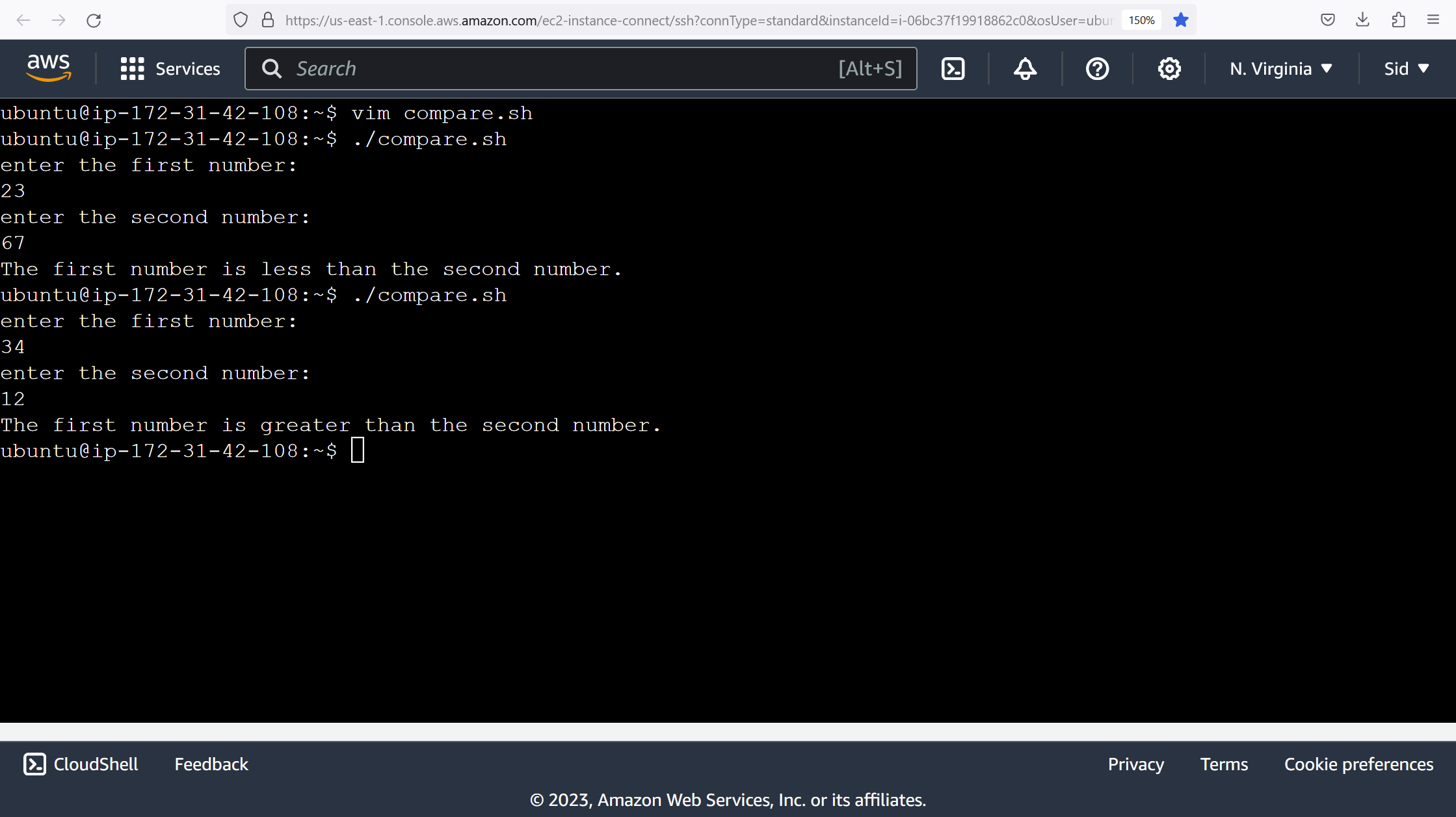
Create a file-vim compare.sh
#!/bin/bash
Prompt the user to enter two numbersecho "enter the first number:"
read num1
echo "enter the second number:"
read num2
# Compare the two numbersif [ $num1 -eq $num2 ]; then
echo "The numbers are equal."
elif [ $num1 -1t $num2 ]; then
echo "The first number is less than the second number."
else
echo "The first number is greater than the second number."
fi
save the file-:wq!
Output