Day 17 Task: Docker Project for DevOps Engineers (Python Web app)
Dockerfile
Docker is a tool that makes it easy to run applications in containers. Containers are like small packages that hold everything an application needs to run. To create these containers, developers use something called a Dockerfile.
A Dockerfile is like a set of instructions for making a container. It tells Docker what base image to use, what commands to run, and what files to include. For example, if you were making a container for a website, the Dockerfile might tell Docker to use an official web server image, copy the files for your website into the container, and start the web server when the container starts.
Task:
Create a Dockerfile for a simple web application Python Web App
a. mkdir projects
b. cd projects
c. ls
Using git clone command to copy repo local
d. git clone https://github.com/LondheShubham153/django-todo-cicd
e. cd django-todo-cicd
f. ls
remove old Dockerfile
rm Dockerfile

Create new one-vim Dockerfile
ls

Build the image using the Dockerfile and run the container
Edit new Dockerfile
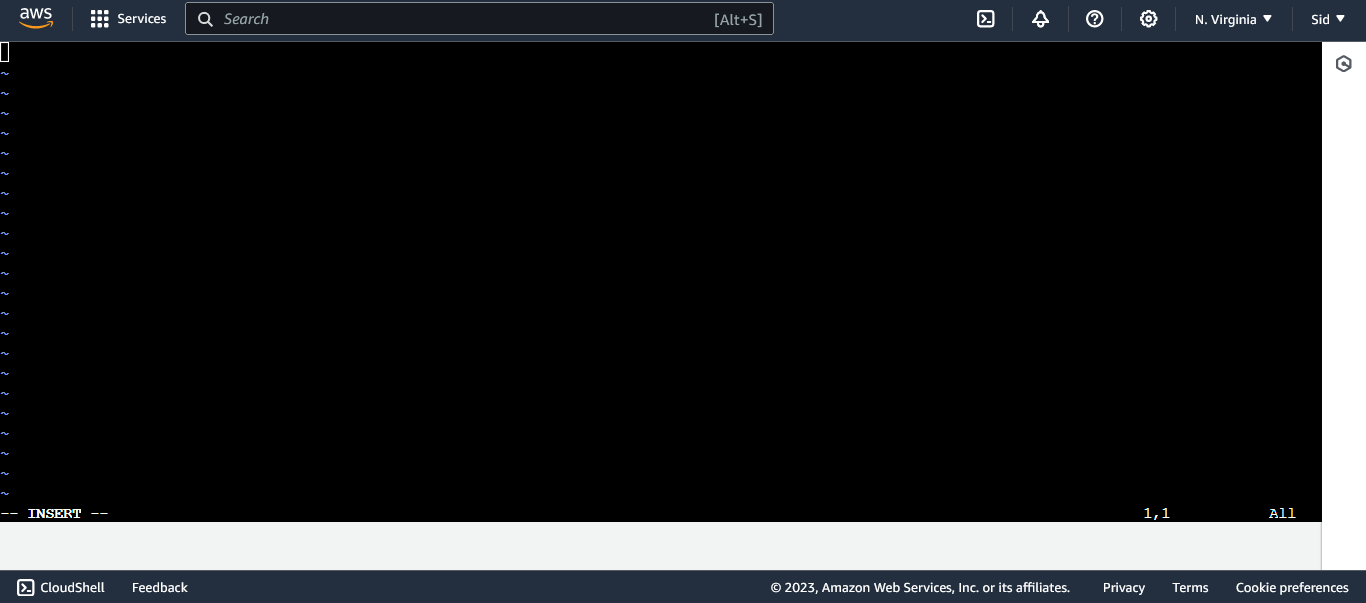
Write a script/code to run python web app
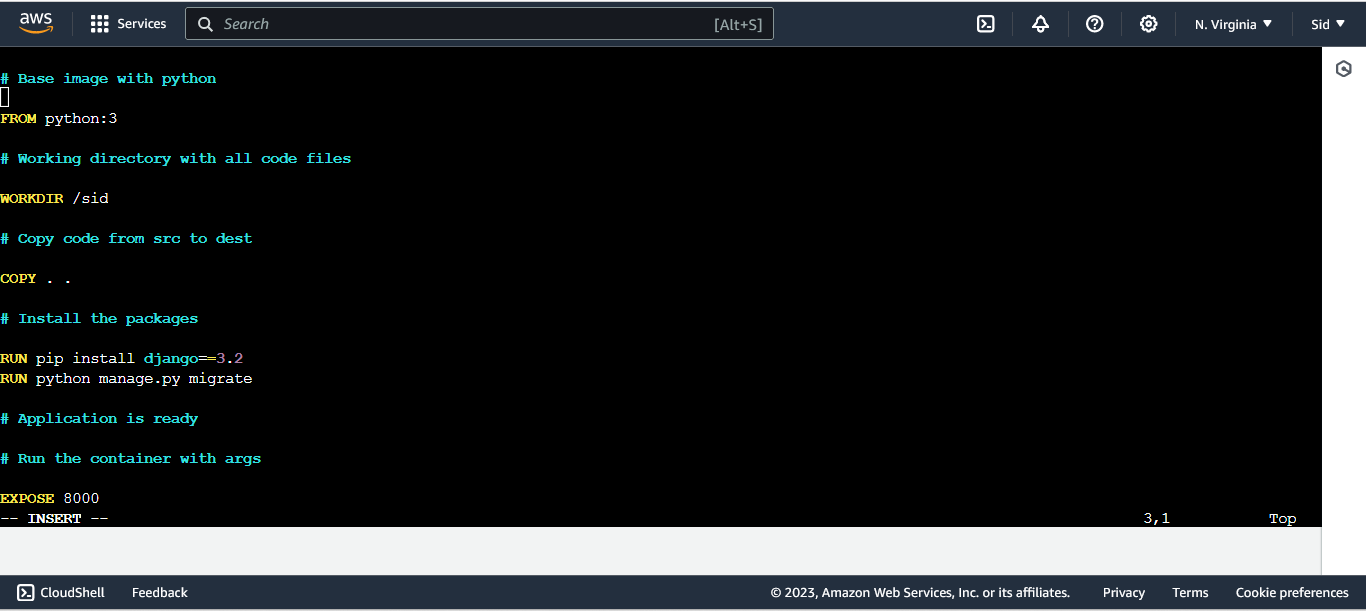
then save the file-:wq!
Build the dockerfile
docker build -t manage.py .
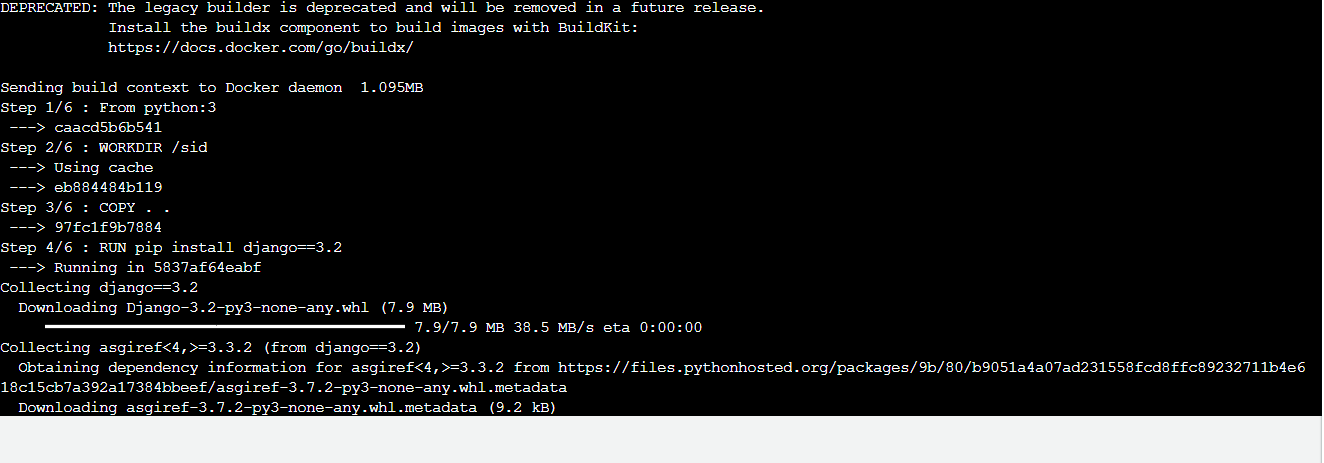
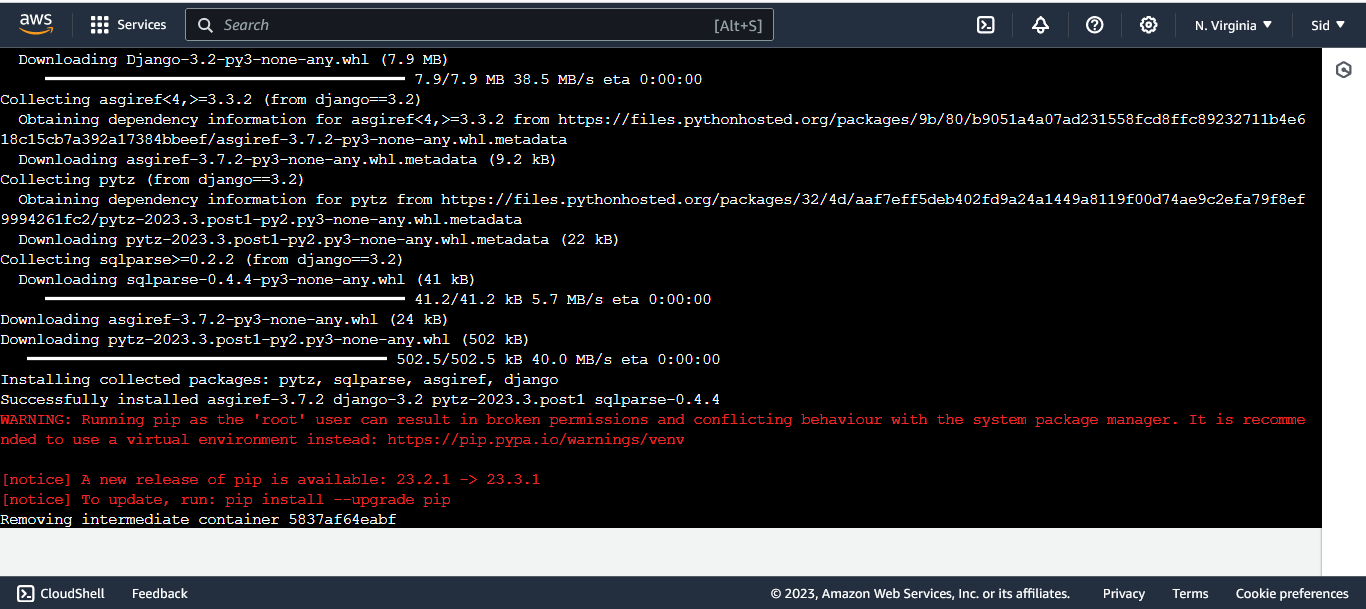
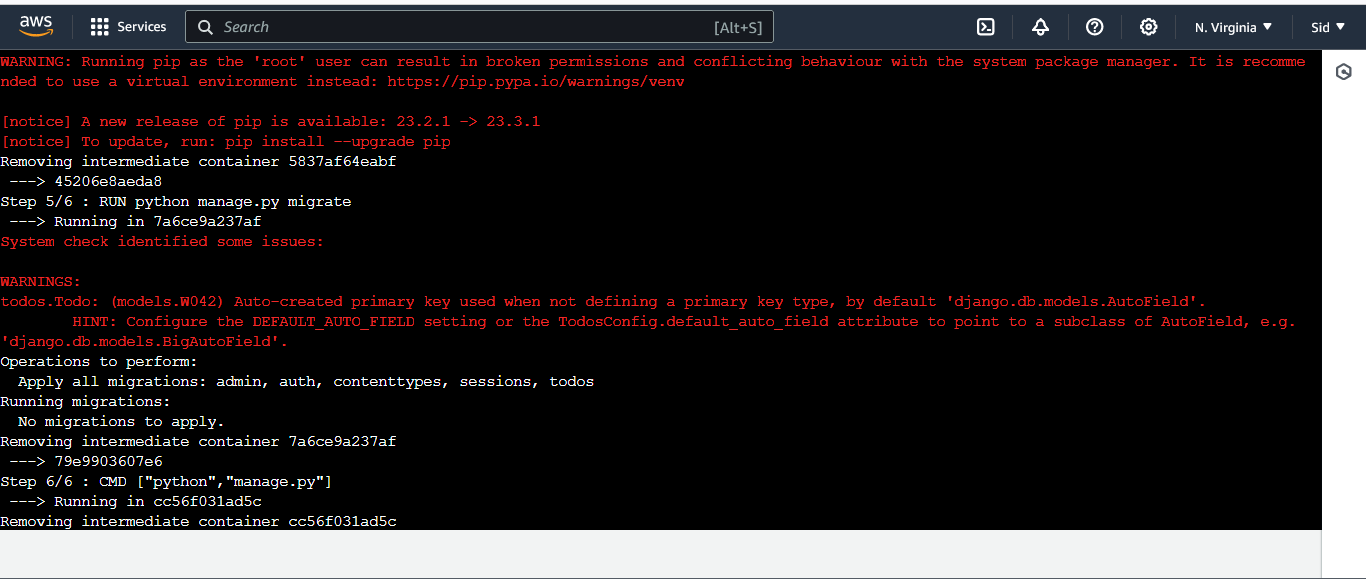

Run docker file and bind the port 8000
docker run -d -p 8000:8000 python.py:latest

Verify that the application is working as expected by accessing it in a web browser
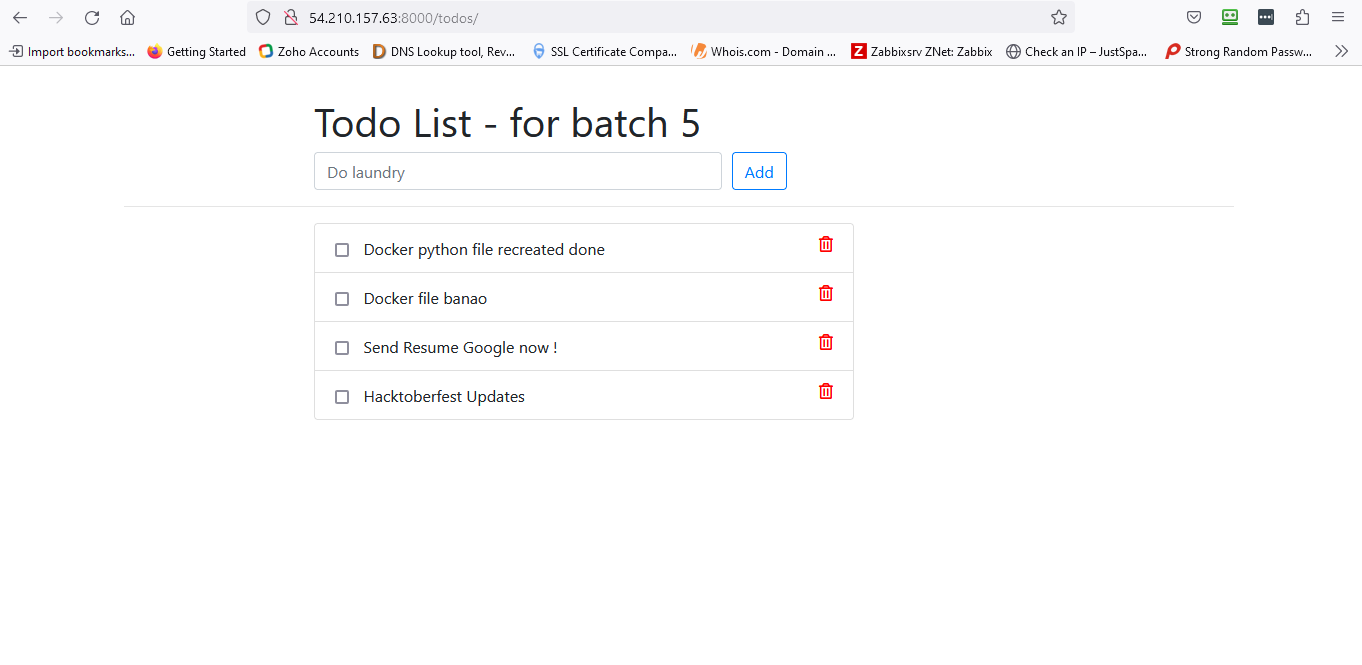
Push the image to a public or private repository (e.g. Docker Hub )
Here are the general steps:
1. Install Docker
Ensure you have Docker installed on your system. If not, download and install Docker Desktop for your operating system.
2. Log in to Docker Hub
Open a terminal or command prompt and use the following command to log in to Docker Hub:
docker login
Enter your Docker Hub username and password when prompted.
3. Tag your Docker image
Tag your local image with the repository name. Suppose your image is named my_image and you want to push it to yourusername/my_repository.
docker tag my_image yourusername/my_repository:tagname
Replace yourusername/my_repository with your Docker Hub repository name and provide a specific tagname for your image.
4. Push the image to Docker Hub
Once tagged, push your image to the repository:
docker push yourusername/my_repository:tagname
This command will push your local image to the specified repository on Docker Hub.
5. Verify on Docker Hub
Visit Docker Hub in your web browser and navigate to your repository to confirm that your image has been successfully pushed.
Remember to replace yourusername, my_repository, and tagname with your actual Docker Hub details and the desired image tag.
Keep in mind that pushing images to Docker Hub requires appropriate permissions and ownership of the repository you're pushing to. Also, ensure your image follows Docker Hub's guidelines and policies.
Thank you for reading this Blog. Hope you learned something new today! If you found this blog helpful, please like, share, and follow me for more blog posts like this in the future😊😊